


Can I show both my internal number as well as the supplier or manufacturer's item number on a transaction?
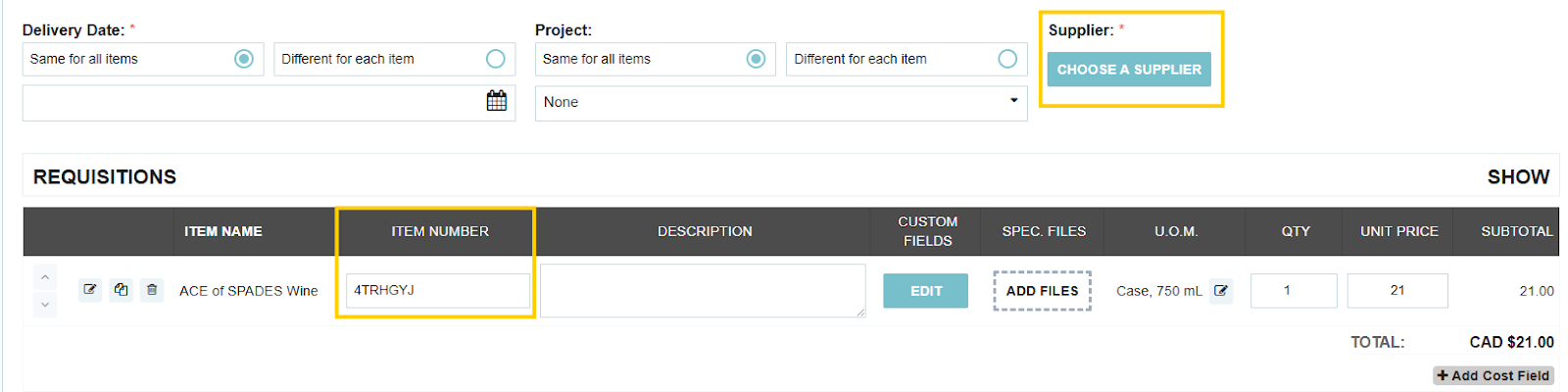
You can manage both your internal item number (or master item number) and supplier-specific item numbers on a single transaction. However, the system can only display one of these numbers in the item number field on a purchase order at a time, depending on how you create the transaction.
Prerequisite: For this functionality to work, the branch setting "Associate database items directly with suppliers" must be turned on in the Branch Profile settings.

How to Configure Both Numbers
When editing an item's profile, you manage two distinct item number fields:
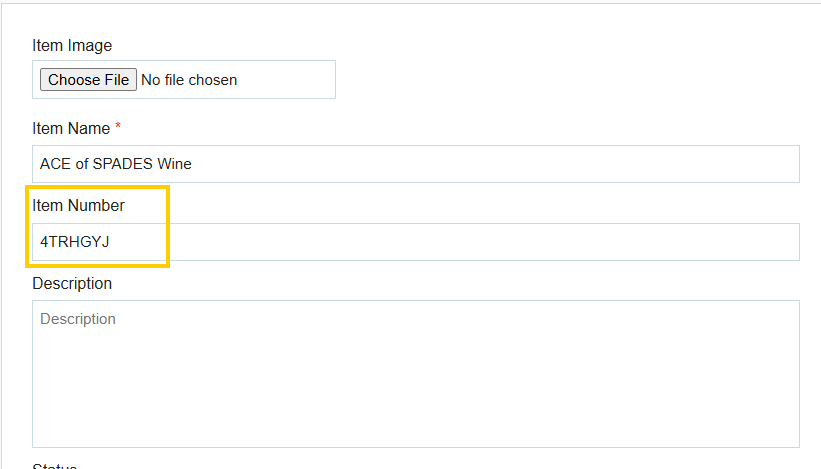
- Internal Item Number (Master Number):
- Go to Items.
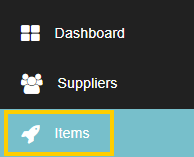
- Select the item, and click Edit.

- Enter the primary, internal tracking number in the standard Item Number field.
- Supplier-Specific Item Number:
- Go to the item profile and click on the Suppliers tab.

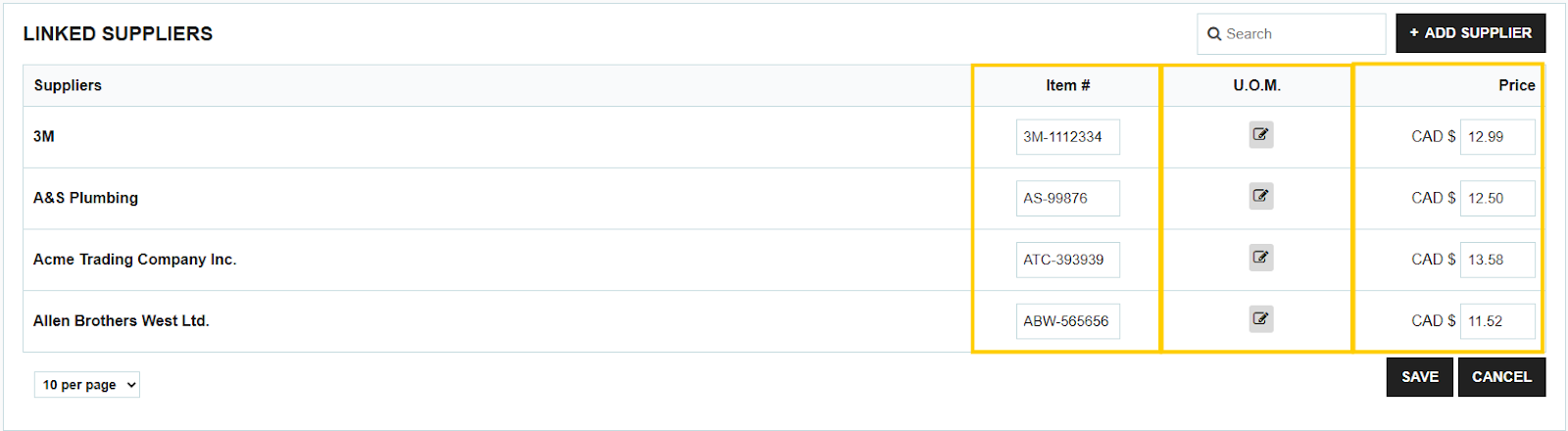
- You will see a list of suppliers who carry that item. Click Edit Supplier Details.

- Here, you can manage the unique item number, Unit of Measure (UOM), and price of the item for that specific supplier.
How to Control Which Number Appears on the PO
The sequence in which you add details to a Purchase Order (PO) determines which item number is displayed:
- To use the Supplier-Specific Item Number:
- When creating a PO, select the Supplier first.
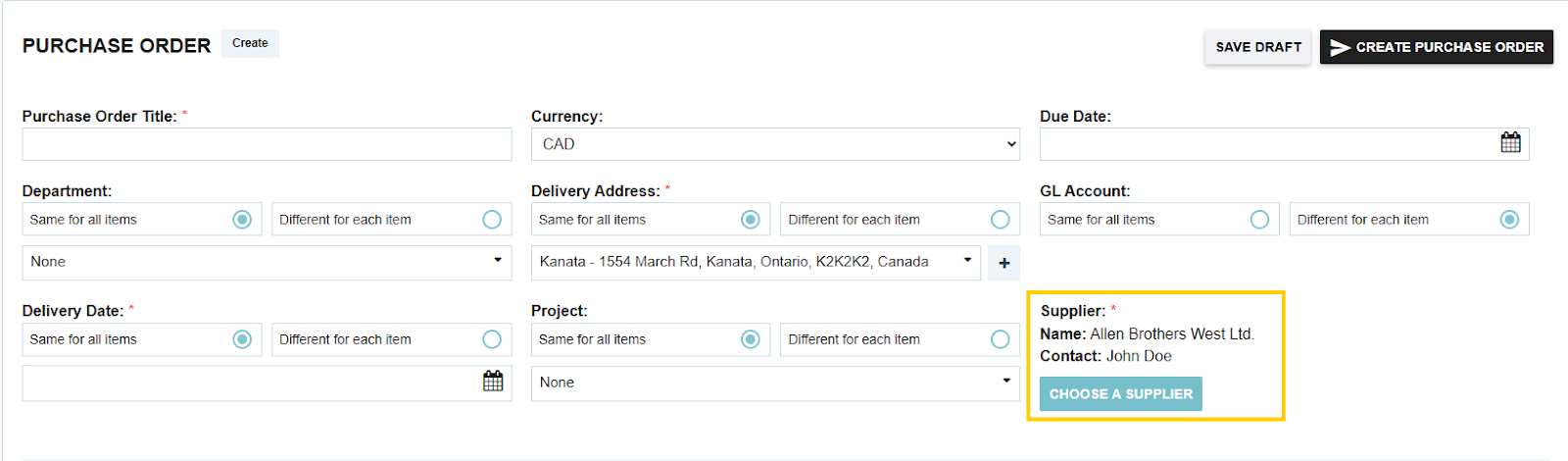
- Then, select and add the item. The item will automatically populate the field with the supplier's item number (along with the supplier's specific price and UOM).

- To use the Internal Item Number:
- If you select the item first (before selecting the supplier), the field will default to the Internal Item Number set on the item's main edit page.
Thank you! Your submission has been received!
Oops! Something went wrong while submitting the form.
.webp)
.png)


