


Why Can't I view affected budgets?
The "View Affected Budgets" tool is a powerful way to track your spend against your financial limits in real-time. If you are unable to see this button on a Purchase Order (PO), it is usually because one of the system's required conditions has not been met.
Required Conditions
To access the budget view, the following four criteria must be satisfied:
1. User Permissions
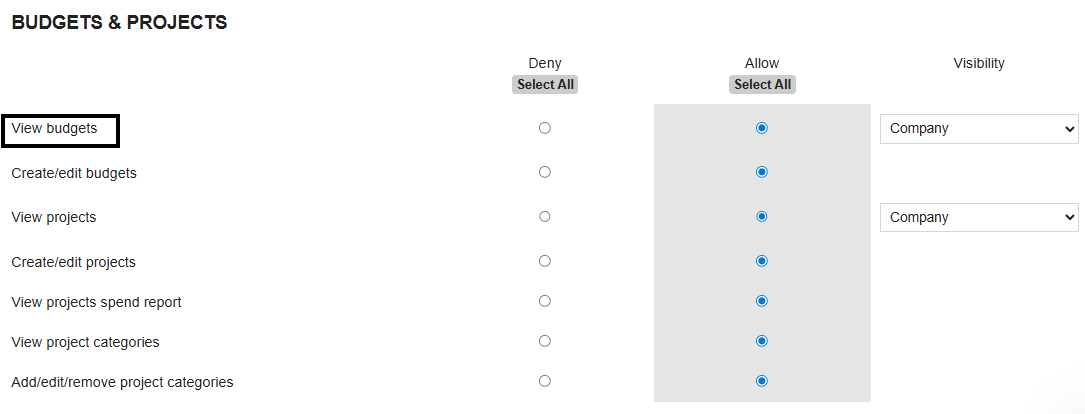
You must have the specific "View Budgets" permission enabled in your user permissions. If you can't see budgets anywhere in the system, reach out to your administrator to update your access level.
2. Active Budget Associations
The PO must actually be linked to a budget. This means the items on the PO must be assigned to at least one of the following:
- A specific Branch or Department budget.
- A User-level budget.
- A GL Account or Project budget.
- Note: If no budget was ever created for these categories, there is no data for the button to display.
3. Operating Branch
The PO must belong to your current operating branch. If you are toggled into "Branch A" but are looking at a PO that was created under "Branch B," the budget view will be restricted to maintain data integrity.
4. Specific PO Status
The "View Affected Budgets" button only appears once a PO has reached a formal stage in its lifecycle. The PO must have one of the following statuses:
- Pending Approval
- Sent to Supplier
- Issued
- In Delivery
- Fully Received
- Closed
Troubleshooting Checklist
.webp)
.png)


